
A QR code for wedding photos that guests actually use
The code is the easy part. What it opens, where it sits, and what the sign says decide whether you get forty photos or four hundred.
- Free for you + 4 guests
- One-time price, no subscription
- Full resolution, no watermark
- Shoot without signal
- Hidden until the reveal
- iOS and Android
What the QR code should open
A QR code is a link with a costume on. The question is what is at the other end.
- A shared album. Google Photos, iCloud, a Dropbox folder. Guests are asked to upload after the fact, from a camera roll full of everything else. A handful do, weeks later.
- An upload form. Better organised, same problem: it depends on guests doing homework after the party.
- A shared disposable camera. The code opens a film. Guests shoot into it in the moment, with a fixed number of shots and nothing to review. The work happens during the wedding, when everyone is holding a phone anyway.
With Keeps, the code opens the film's invite page. A guest who already has the app is in with one tap; a guest who does not installs it, signs in, and joins. Every film also has a short code for anyone who would rather type than scan.
Get the install out of the way before the day
Keeps is an app, and the honest way to run it is to make sure the install does not happen at the table. Put the same QR code, or the link, where guests will see it weeks ahead:
- On the wedding website, next to the dress code and the directions.
- On a small insert in the invitation suite.
- In the RSVP confirmation, with one line: "Join our film now, shoot on the day."
Guests can join a film as soon as it exists, even months before it starts. On the day, the scan is a single tap that opens the camera.
Where to put it on the day
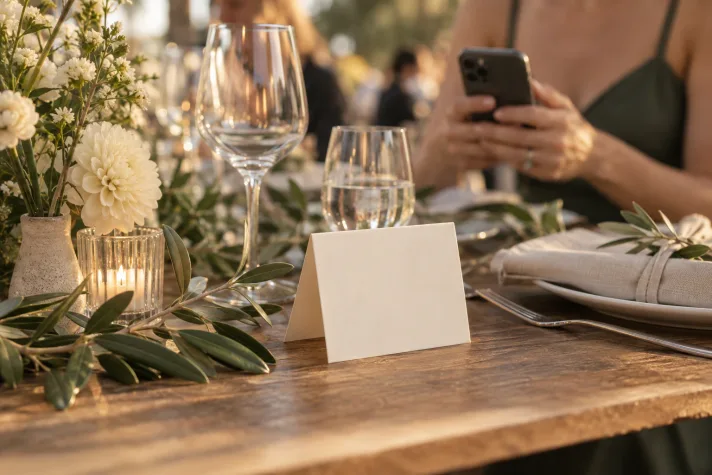
- The welcome sign. Guests are standing still, looking for their name, with a phone in hand. This is the highest-value placement in the building.
- Every table. A card the size of a menu, propped where the salt would be. People scan it during the speeches.
- The bar. A queue with good intentions.
- The program or order of service. For the early arrivals and the ceremony itself.
- The photo corner. If you have a backdrop or a booth, the sign belongs beside it.
- The MC's mouth. One sentence after dinner, before the dancing, doubles the take-up more than any sign.
What the sign should say
Short, with the mechanic in it. Guests need to know three things: shoot, do not expect to see anything, and when they will. Three that work:
Scan, shoot, no peeking. The reveal is tomorrow morning. Code: ABCD1234
Replace the code line with your film's real short code, so a guest who cannot scan can still type their way in.
Printing it
The app makes a printable card for every film with the QR code and the short code on it. Print it at home for the tables, or send the file to whoever is printing your stationery and ask for it on the same card stock as the menus. If you are designing your own signs, the QR image from the invite screen drops straight into them; keep it at least four centimetres wide so it scans from across a table.
Getting people to use it
- Shoot first. The couple taking the first photo at the top table, visibly, is permission for everyone else.
- Say the number. "You have twenty shots" is a game. "Please upload your photos" is a chore.
- Name the reveal. "The film opens at breakfast tomorrow" gives people something to look forward to and a reason not to peek at their own camera roll instead.
- Ask once more late. The best photos are taken after eleven. A second announcement when the dancing starts catches the people who forgot.
What happens after
The film ends at the time you set, everyone in it gets a notification, and the gallery opens at once with every photo credited to the guest who took it. Anyone can save the full-resolution originals to their camera roll. Only people in the film can see it, and nothing is public. The rest of the wedding playbook is on the weddings page.